Getting Started Guide
The main setup paths are pipeline creation, choosing a delivery target, and Telegram bot token verification.
1. Create a Pipeline Task
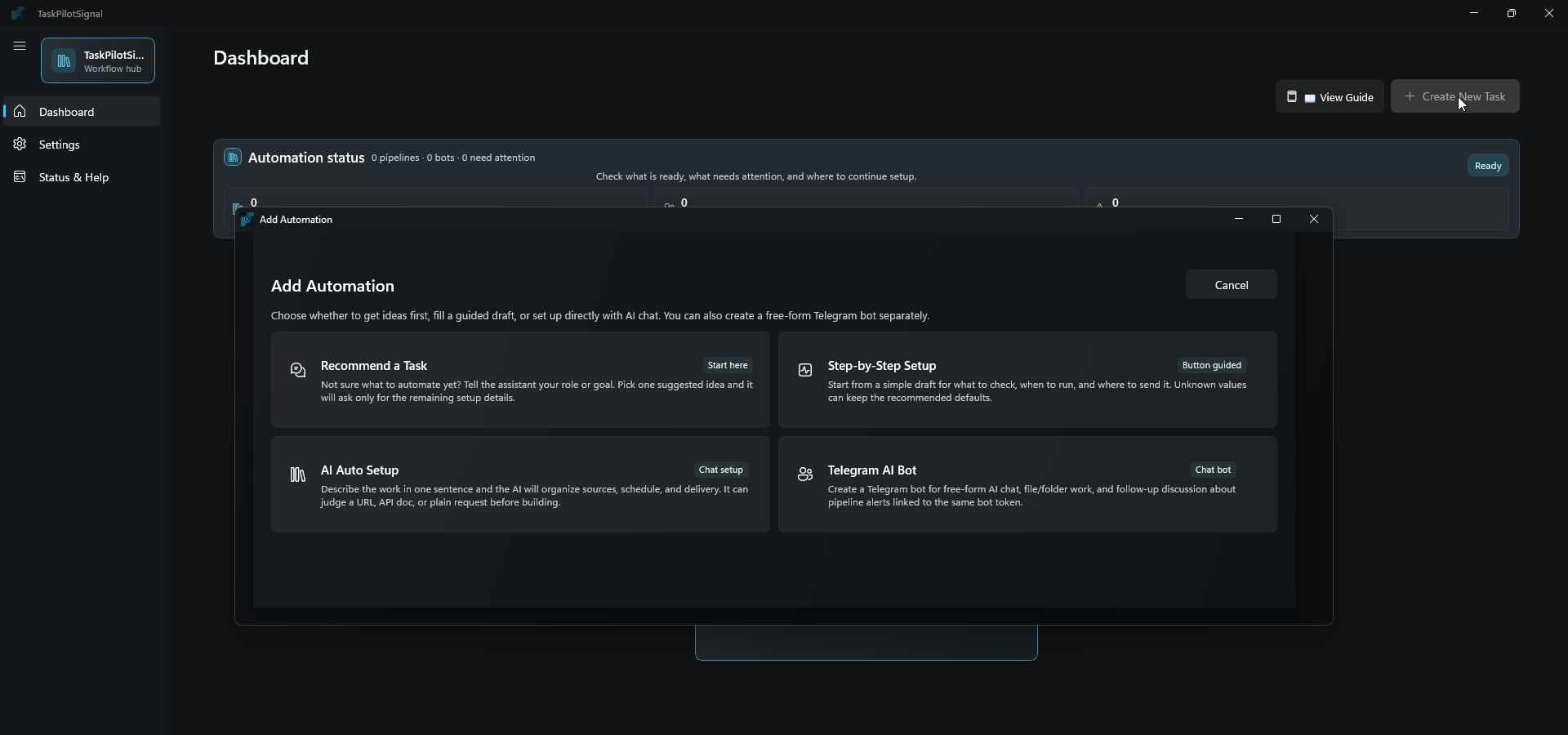
Click any screenshot to open it full size.
Screenshots hide account names, project IDs, and local file names. Use your own values on your PC.
- Click Create New Task from the dashboard.
- Start with a recommendation, a step-by-step draft, or AI Auto Setup.
- Use the guided buttons when you want sensible defaults, or switch to manual setup for full control.
- Select an AI agent and model, add a web or YouTube source, choose a delivery target, and set a schedule time.
- Save the task. Use Start for scheduled runs or Run Now for a manual test.
2. Choose Where Results Go
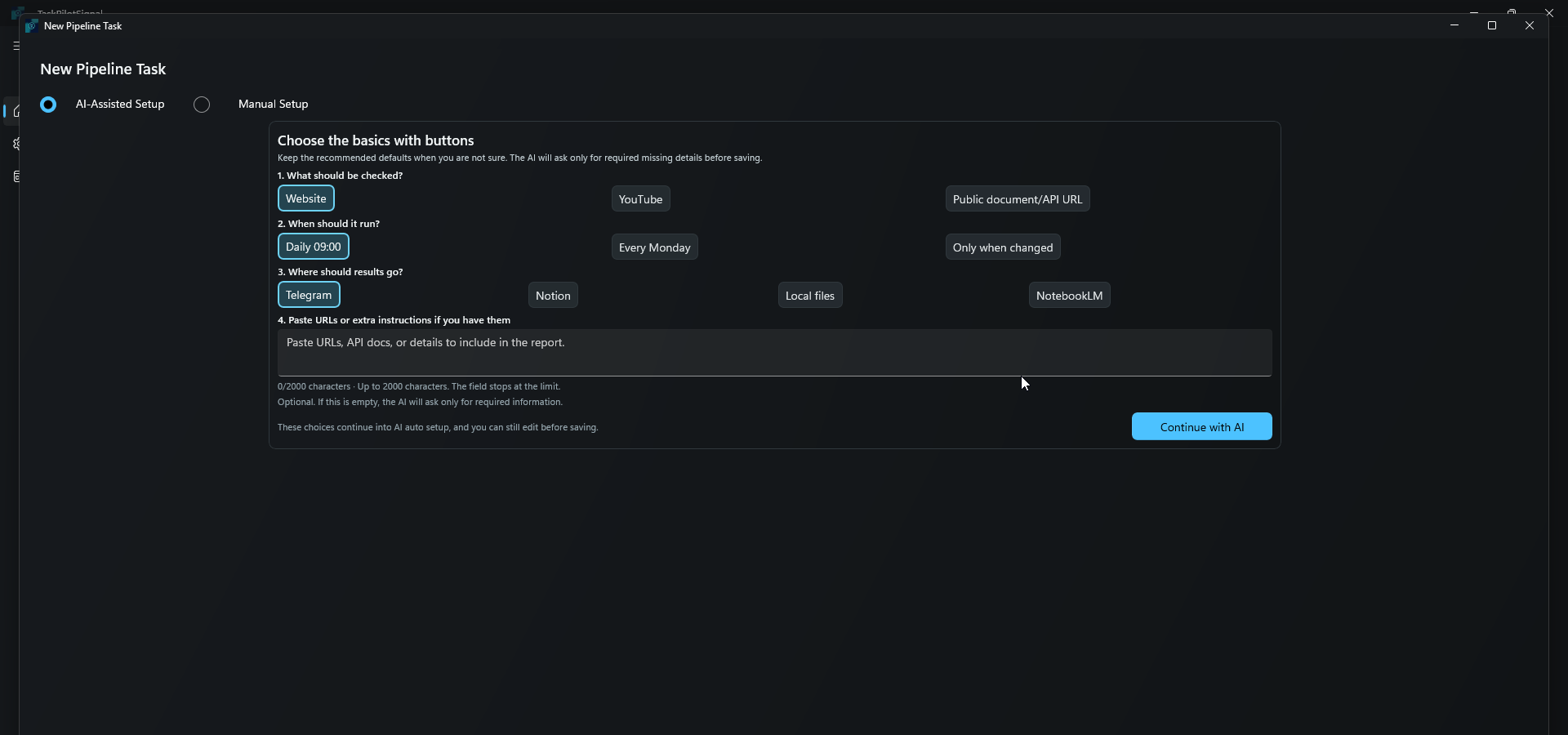
Click any screenshot to open it full size.
- Choose Telegram for chat delivery or Notion for a connected Notion page.
- Choose Local files to save TXT, HTML, or DOCX output in the app-owned per-user workspace. Use Open Folder to view it.
- Choose NotebookLM to append to one existing NotebookLM Personal notebook. Sign in visibly in the default browser and save that notebook's address.
- NotebookLM opens a visible browser confirmation during delivery. The app does not copy browser cookies, profiles, or notebook page contents.
- Google Workspace, Drive, Docs, and Sheets are not available delivery targets.
3. Get a Telegram Bot Token
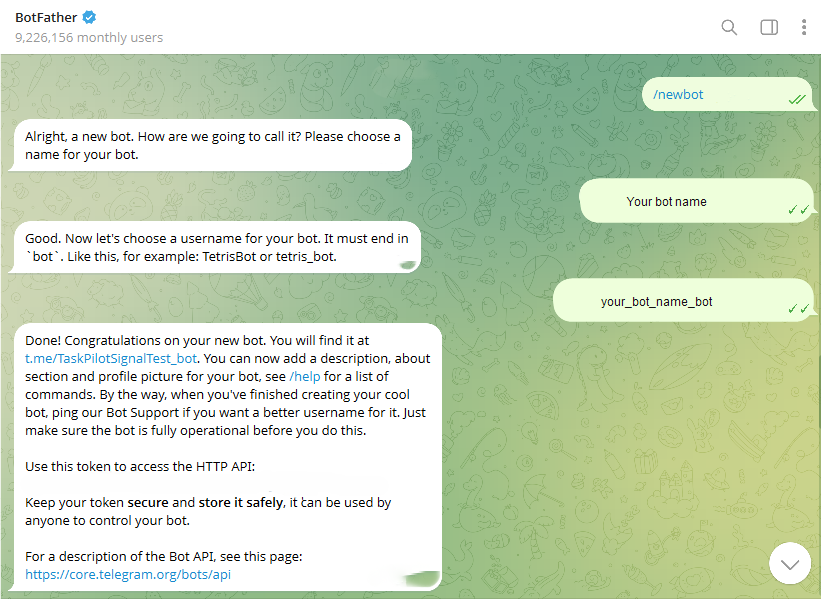
bot.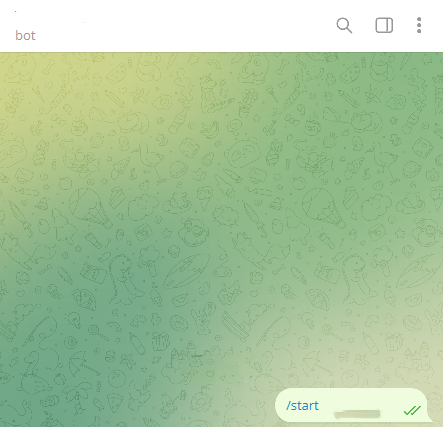
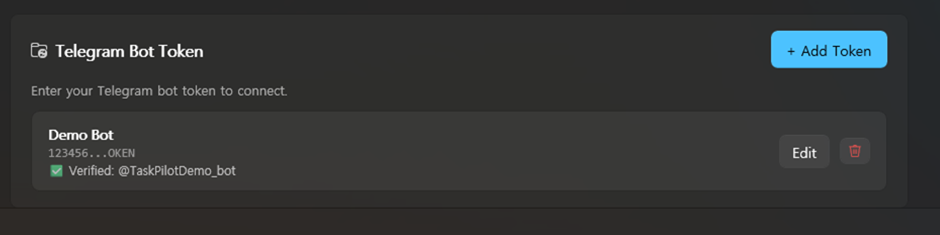
Click any screenshot to open it full size.
- Open Settings > Telegram Bot Tokens in TaskPilotSignal when you are ready to add the token. Token creation is done in Telegram, then saved here.
- Open Telegram and search for @BotFather. Use the official BotFather account, then send
/newbot. - When BotFather asks for a name, type the name users should see for your bot. When it asks for a username, type a unique value ending in
bot, such asyour_bot_name_bot. Do not copy the screenshot example exactly. - Copy the token BotFather gives you. Treat it like a password and do not share it.
- Open a 1:1 chat with your new bot and send
/startor any message once. - Return to Settings > Telegram Bot Tokens, add the token, and click verify. Chat ID is detected automatically from your latest bot message.
- If verification says no chat was found, send one more message to the bot in Telegram and verify again.
Optional: Use Ollama Local AI
- Install Ollama separately from
https://ollama.com/download. - Start the Ollama app, then download at least one local model.
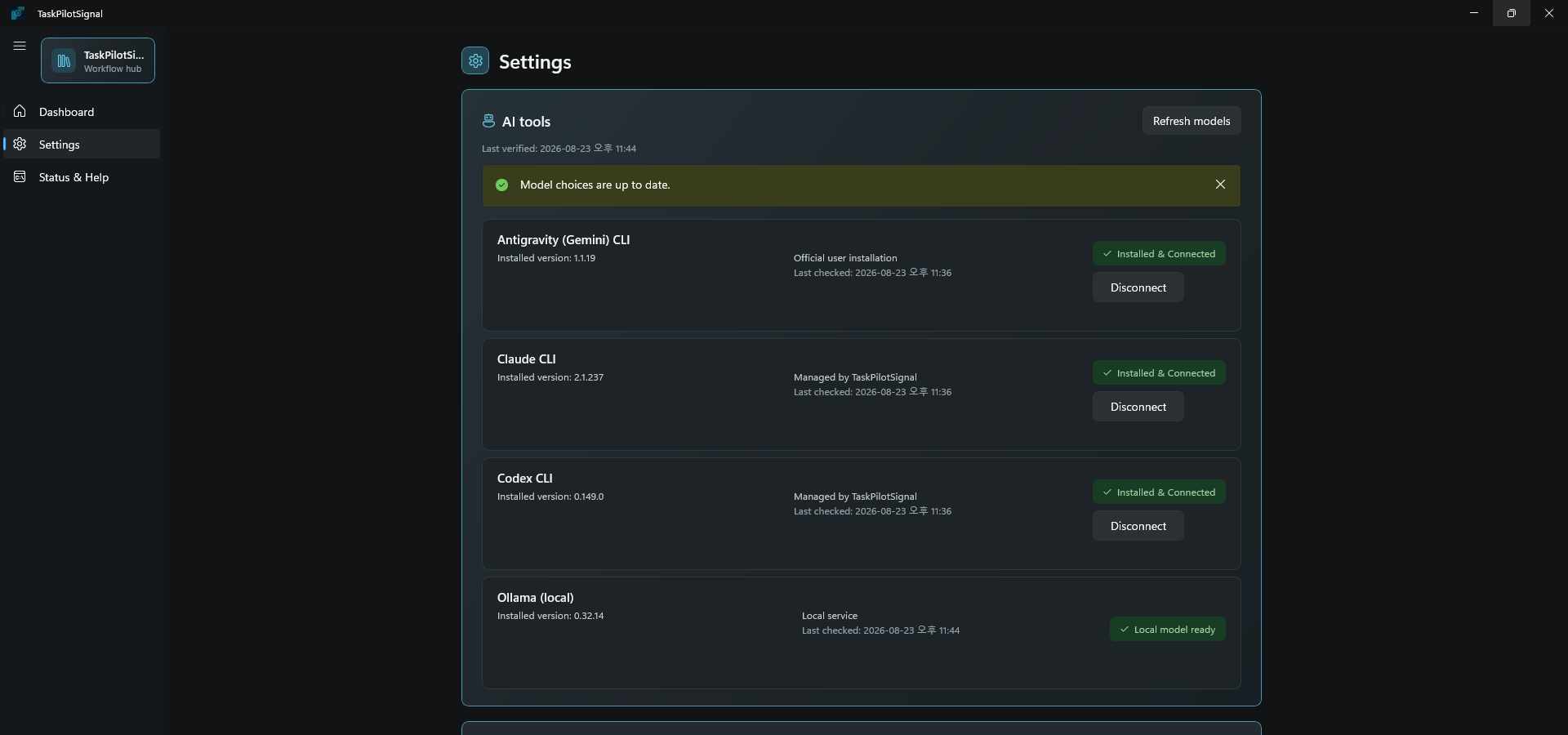
- Open TaskPilotSignal Settings and select Ollama after the app detects a local model.
- If Ollama is not available, check that the app is running, a model is downloaded, and the host is local to this PC.
Provider Model Choices and Safe Fallback
- TaskPilotSignal can refresh provider model choices independently of an app update by using signed public model metadata and the connected provider CLI.
- If a refresh is unavailable or fails verification, the app keeps a compatible verified choice already available on this PC instead of applying unverified data.
- Sign in with each provider's own CLI on this PC. TaskPilotSignal does not import the provider's account or session files.
Telegram Bot Commands
/help- show available commands./ping- check whether the bot is alive./change ai gemini- switch the active AI provider./newsession- start a fresh AI conversation./resume- continue the saved session where available.
Pipeline Examples
Microsoft news digestCheck
https://blogs.windows.com/windowsdeveloper/tag/news/ every day at 09:00 and send a Telegram summary.YouTube channel summaryCheck a YouTube channel once a day, summarize new videos, and save the result to Notion.
Local document reportCollect weekday updates and save a readable TXT, HTML, or DOCX report in the app workspace.
NotebookLM research sourceCollect selected output and append it to an existing NotebookLM notebook through the visible browser flow.
시작 가이드
가장 중요한 설정은 작업 파이프라인 생성, 전달 대상 선택, 텔레그램 봇 토큰 검증입니다.
1. 작업 파이프라인 만들기
스크린샷을 누르면 원본 크기로 볼 수 있습니다.
스크린샷의 계정 이름, 프로젝트 ID, 로컬 파일 이름은 가려져 있습니다. 실제 설정에서는 본인 PC의 값을 사용하세요.
- 대시보드에서 새 작업 만들기를 누릅니다.
- 작업 추천, 단계별 초안, AI 자동 설정 중에서 시작 방식을 고릅니다.
- 추천 기본값을 쓰려면 버튼 안내를 따르고, 모든 항목을 직접 정하려면 수동 설정으로 전환합니다.
- AI 에이전트와 모델, 웹 또는 YouTube 소스, 전달 대상, 실행 시간을 설정합니다.
- 작업을 저장한 뒤 시작으로 예약 실행하거나 즉시 실행으로 테스트합니다.
2. 결과 전달 위치 선택
스크린샷을 누르면 원본 크기로 볼 수 있습니다.
- 채팅으로 받으려면 Telegram, 연결한 페이지에 쓰려면 Notion을 선택합니다.
- 로컬 파일은 앱이 관리하는 사용자별 작업공간에 TXT, HTML, DOCX 파일로 저장합니다. 폴더 열기로 바로 확인할 수 있습니다.
- NotebookLM은 기존 NotebookLM Personal 노트북 하나에 추가합니다. 기본 브라우저에서 직접 로그인하고 기존 노트북 주소를 저장하세요.
- NotebookLM 전달 시 보이는 브라우저 확인이 열립니다. 앱은 브라우저 쿠키, 프로필, 노트북 페이지 내용을 복사하지 않습니다.
- Google Workspace, Drive, Docs, Sheets는 전달 대상으로 제공하지 않습니다.
3. 텔레그램 봇 토큰 얻기
bot으로 끝나는 고유한 사용자 이름을 입력합니다.
스크린샷을 누르면 원본 크기로 볼 수 있습니다.
- TaskPilotSignal에서 설정 > 텔레그램 봇 토큰을 열어둡니다. 토큰은 Telegram에서 만든 뒤 이 화면에 저장합니다.
- Telegram에서 @BotFather를 검색합니다. 공식 BotFather 계정을 사용하고
/newbot을 보냅니다. - BotFather가 이름을 물으면 사용자가 볼 봇 표시 이름을 입력하세요. 사용자 이름을 물으면
your_bot_name_bot처럼bot으로 끝나는 고유한 값을 입력하세요. 스크린샷 예시를 그대로 복사하지 마세요. - BotFather가 알려주는 토큰을 복사합니다. 토큰은 비밀번호처럼 다루고 다른 사람에게 공유하지 마세요.
- 새 봇과 1:1 채팅을 열고
/start또는 아무 메시지를 한 번 보냅니다. - 다시 설정 > 텔레그램 봇 토큰으로 돌아와 토큰을 추가하고 검증을 누릅니다. 채팅 ID는 최근 봇 메시지에서 자동 감지됩니다.
- 검증 시 채팅을 찾지 못했다고 나오면 Telegram에서 봇에게 메시지를 한 번 더 보내고 다시 검증하세요.
선택 기능: Ollama 로컬 AI 사용
https://ollama.com/download에서 Ollama를 별도로 설치합니다.- Ollama 앱을 실행하고 로컬 모델을 하나 이상 다운로드합니다.
- TaskPilotSignal 설정에서 로컬 모델이 감지된 뒤 Ollama를 선택합니다.
- Ollama가 보이지 않으면 앱이 실행 중인지, 모델이 다운로드되어 있는지, host가 이 PC의 로컬 주소인지 확인하세요.
제공자 모델 선택지와 안전한 대체 선택
- TaskPilotSignal은 서명된 공개 모델 정보와 연결된 제공자 CLI를 사용해 앱 업데이트와 별개로 모델 선택지를 새로 확인할 수 있습니다.
- 새로 고침을 사용할 수 없거나 검증에 실패하면 검증되지 않은 정보를 적용하지 않고, 이 PC에서 이미 확인된 호환 선택지를 유지합니다.
- 각 제공자의 CLI에서 이 PC에 직접 로그인하세요. TaskPilotSignal은 제공자 계정 또는 세션 파일을 가져오지 않습니다.
텔레그램 봇 명령어
/help- 사용할 수 있는 명령어를 확인합니다./ping- 봇이 정상 작동 중인지 확인합니다./change ai gemini- 사용할 AI 제공자를 변경합니다./newsession- 새 AI 대화를 시작합니다./resume- 가능한 경우 저장된 세션을 이어갑니다.
작업 파이프라인 예시
Microsoft 뉴스 요약
https://blogs.windows.com/windowsdeveloper/tag/news/를 매일 09:00에 확인하고 텔레그램으로 요약을 보냅니다.YouTube 채널 요약YouTube 채널을 하루 한 번 확인하고 새 영상 요약을 Notion에 저장합니다.
로컬 문서 보고서평일마다 업데이트를 수집하고 앱 작업공간에 TXT, HTML, DOCX 보고서로 저장합니다.
NotebookLM 리서치 자료선택한 결과를 보이는 브라우저 흐름으로 기존 NotebookLM 노트북에 추가합니다.